Repositories
The Repositories feature gives you a consolidated view of every code repository tracked by CodeMetrics — either across your entire programme or scoped to a specific workload. From here you can quickly navigate to pipeline health dashboards, inspect individual repository metrics, and narrow down large repository lists using filters.
Programme-level view
Navigate to Programme > Repositories to see all repositories across every workload in one place.
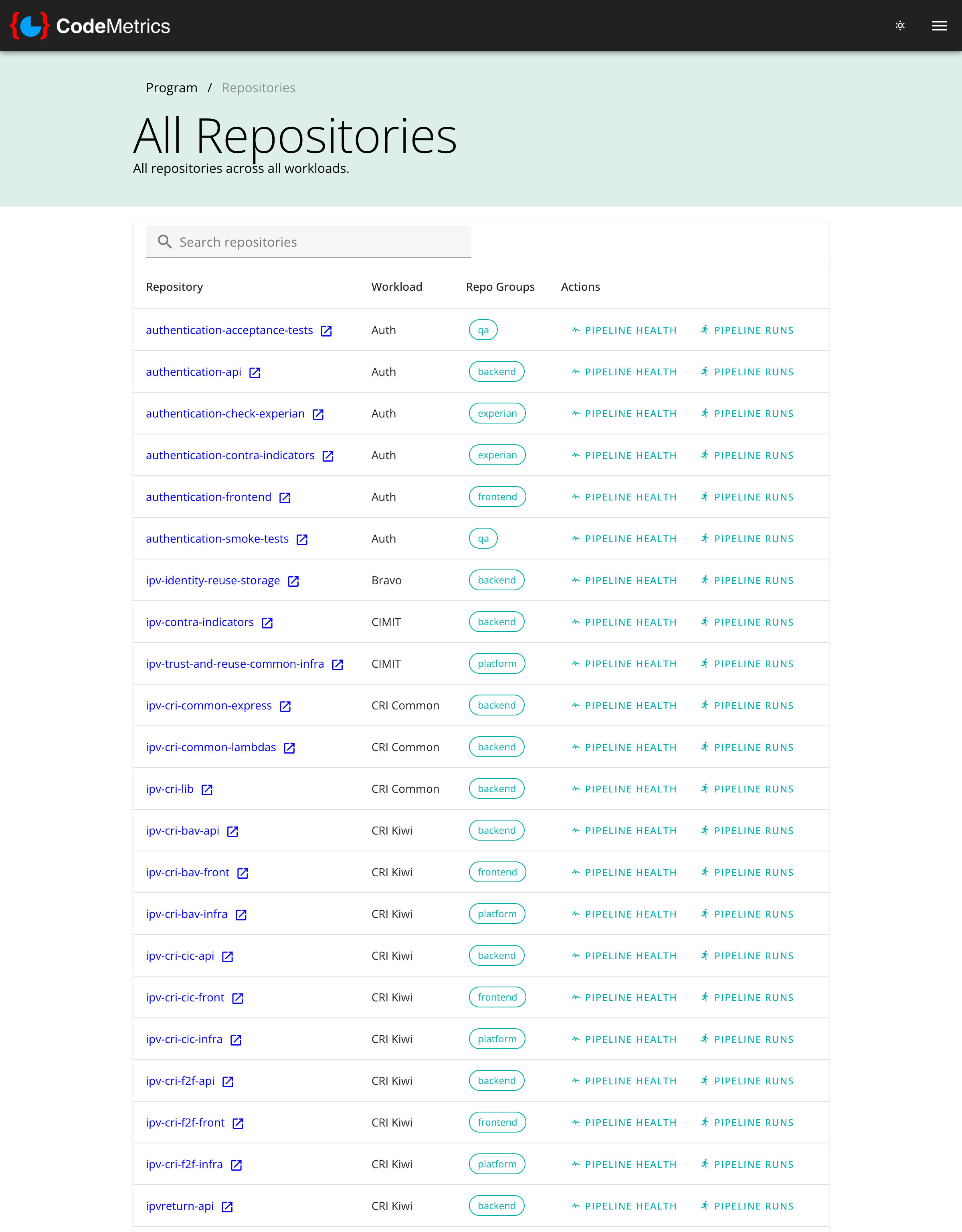
This view is useful when you want to:
- Audit your full repository estate — see every repository tracked across all workloads and their associated repo groups at a glance.
- Spot cross-workload patterns — the same repository may appear in multiple workloads (e.g. a shared library consumed by several teams), letting you identify shared dependencies.
- Quickly navigate to pipeline metrics for any repository without first drilling into a workload.
The table columns are:
| Column | Description |
|---|---|
| Repository | The repository name. Click the external link icon to open the repository in your code management platform (e.g. GitHub). |
| Workload | The workload that owns this repository entry. |
| Repo Groups | The repo groups this repository belongs to (e.g. backend, frontend, platform). A repository may belong to multiple groups. |
| Actions | Quick links to Pipeline Health and Pipeline Runs for this repository. |
Workload-level view
Navigate to a specific workload and select Repositories from the breadcrumb or workload menu to see only the repositories belonging to that workload.
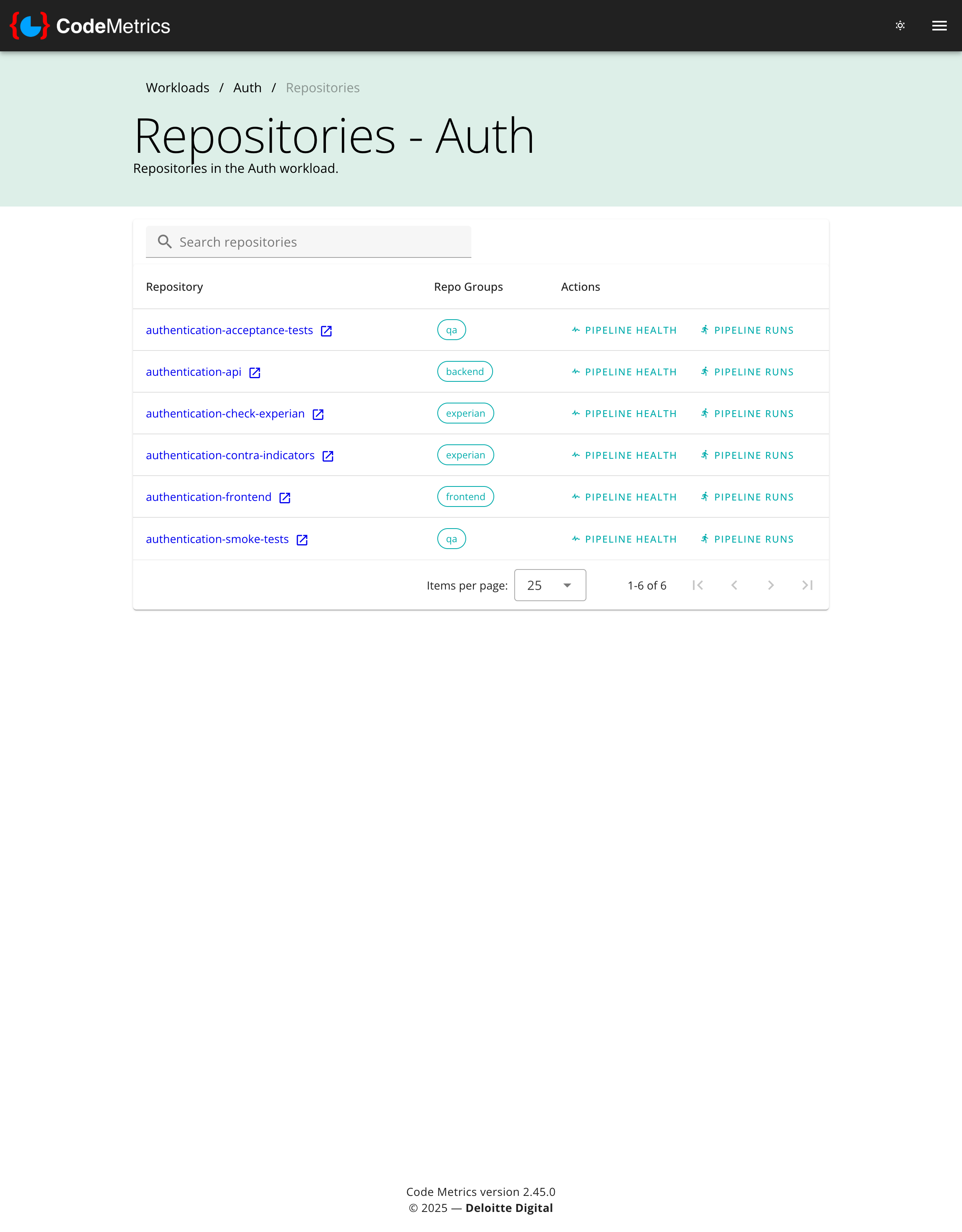
This is the most common starting point for a team lead or engineer who wants to:
- Review build health across a team's repositories — all repositories are listed with direct links to Pipeline Health and Pipeline Runs.
- Check repo group membership — confirm which groups each repository belongs to, which affects how metrics are aggregated in queries.
- Navigate to a specific repository's detail page to inspect deeper metrics (see Repository detail below).
The workload view shows the same columns as the programme view, minus the Workload column (since it is already implicit).
Filtering and searching
Both the programme-level and workload-level views support filtering to help you find repositories quickly in large estates.
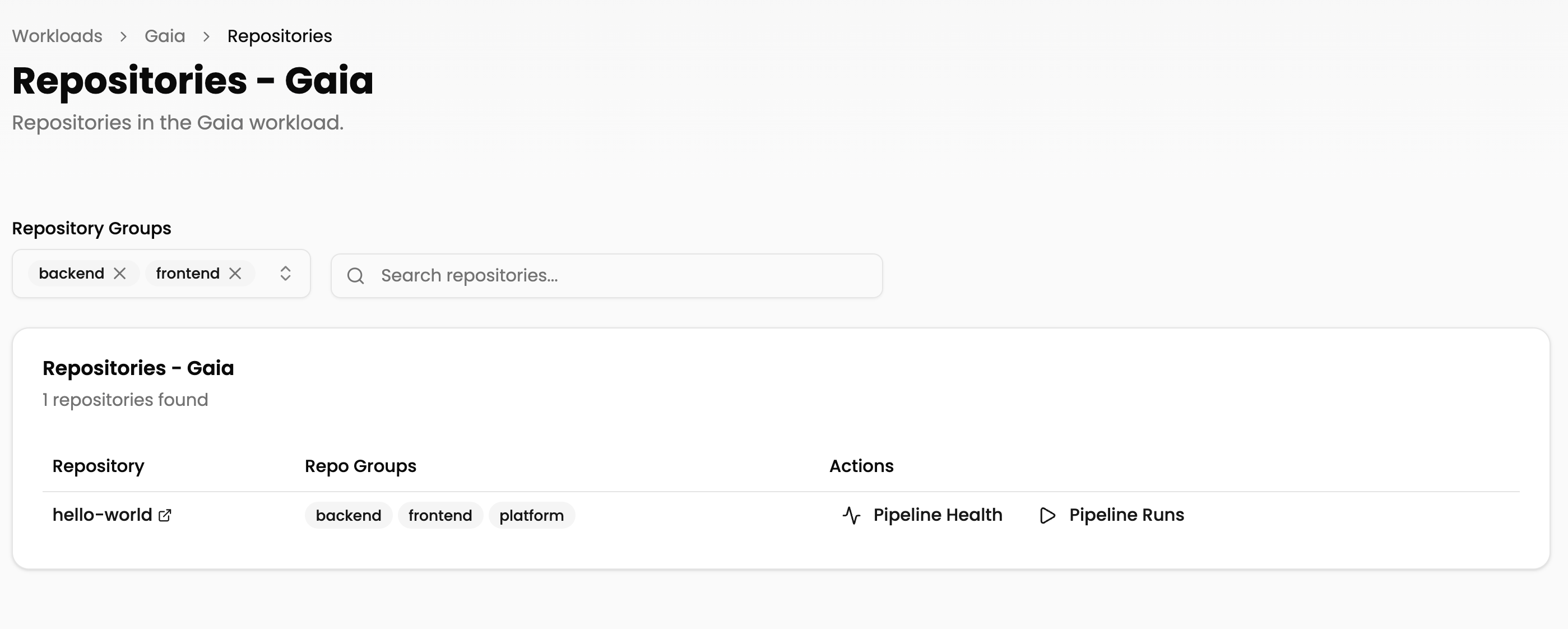
Filter by Repository Group
Use the Repository Groups multi-select control to narrow the list to repositories that belong to one or more specific groups (e.g. backend, frontend, monorepos). This is particularly useful when:
- You want to check the pipeline health of all
frontendrepositories across a workload. - You are investigating a specific tier (e.g.
platform) without distraction from unrelated repositories.
Selected groups are shown as removable tags. Click the × on any tag to deselect it, or use the dropdown to add groups. The repository count updates immediately to reflect the active filter.
Search by name
Use the Search repositories… text box to filter the list by repository name. This is a simple substring match and is useful when you know the repository name but are working with a large, unfiltered list.
Filters and search can be combined — for example, filtering to the frontend group and then searching for a specific repository name within that group.
Repository detail
Click a repository name in any list to open its detail page, which shows a rich set of metrics for that specific repository.
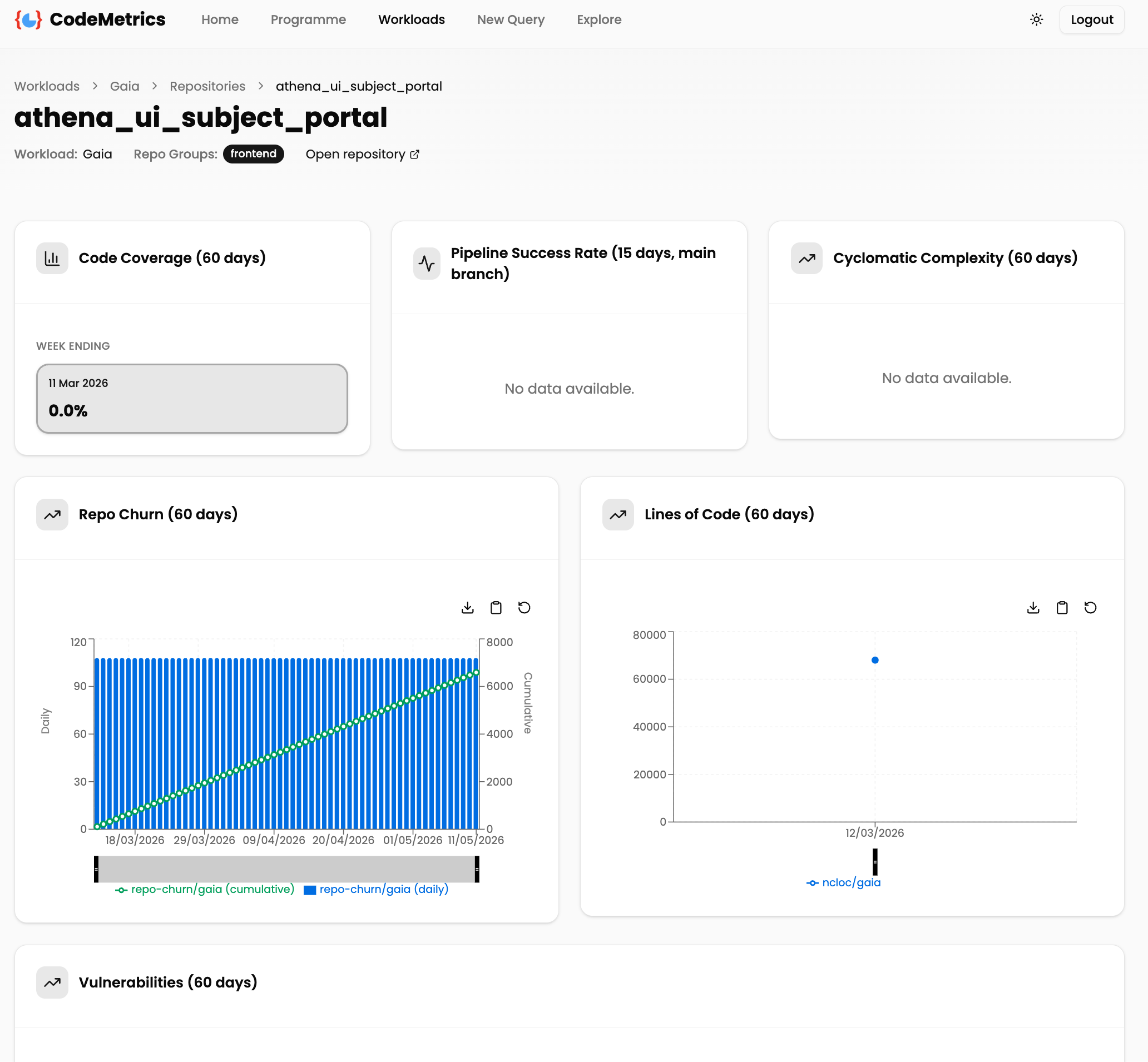
The detail page shows the repository's workload and repo group membership at the top, along with a direct link to open the repository in your code management platform.
Below that, a set of metric cards provides an at-a-glance summary:
| Metric | Description |
|---|---|
| Code Coverage | Test coverage percentage over the last 60 days, shown week by week. |
| Pipeline Success Rate | The rate of successful pipeline runs on the main branch over the last 15 days. |
| Cyclomatic Complexity | Code complexity trend over the last 60 days. |
| Repo Churn | Daily and cumulative file churn over the last 60 days — a high churn rate can indicate instability or frequent rework. |
| Lines of Code | Codebase size trend over the last 60 days. |
| Vulnerabilities | Known vulnerability trend over the last 60 days. |
Cards that have no data for the selected period display No data available — this typically means the relevant data source has not yet been configured for that repository.
Common scenarios
Rapidly assessing build health : Open the repository detail page and check Pipeline Success Rate. A low success rate on the main branch is an early indicator of instability. Use the Pipeline Health action link from the repository list to go directly to the pipeline health dashboard for a more detailed breakdown.
Tracking codebase growth and churn : Use Lines of Code alongside Repo Churn to understand whether growth is accompanied by high levels of rework. A rising cumulative churn with a plateauing lines-of-code count may indicate significant refactoring or instability.
Monitoring test coverage trends : The Code Coverage card shows weekly snapshots. A declining trend over time warrants attention, particularly before a planned release.
Investigating vulnerabilities : The Vulnerabilities card gives a quick indication of whether known vulnerabilities are trending upward. For a full vulnerability report, see Vulnerabilities.